# Client Management
Every appointment requires one ore more clients.
## Adding and viewing clients
### Add A Client
To add a new client the user should do the following:
1. In the Top Margin click the NEW CLIENT button
2. In the New Client window enter as many details as possible
3. To enter notes, click on the NOTES tab
4. Click the SAVE button to save the client
> Note: For the new client to receive appointment reminders by phone, a mobile phone number is required. Likewise, for appointment reminders by email, an email address is required.
> Tip: _For testing_ purposes, we recommend that the user enters themselves in as a client.
### View List of Clients
To view the list of clients on the account the user should do the following:
1. In the Top Margin click on the `NAVIGATION` button
2. In the drop-down menu choose `CLIENTS`
A new tab called Clients will appear in the application.
## Clients Tab
The Clients tab is where all clients can be viewed and maintained by the user. To open the tab the user needs to click on the TAB button in the top margin and select Clients.
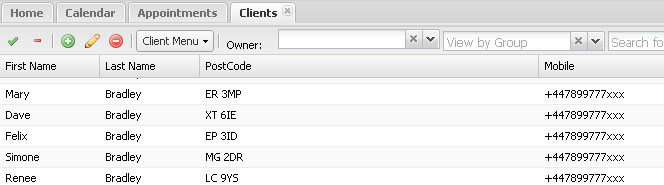
The tab consists of the following:
- A tool bar for the client containing buttons, menus and search controls
- A clients grid showing clients that match the users search criteria
- A tool bar for the client groups containing buttons and menus
- A clients group grid showing any client groups
### Clients Tool Bar
The tool bar contains buttons and menus.
### Client Tool Bar Buttons
| Button | Description | Notes |
| --- | --- | --- |
|  | Select all clients in the grid | |
|  | Deselect all clients in the grid | |
|  | Add a new client | |
|  | Edit the client | The first selected client |
|  | Delete clients | All selected clients |
|  | Open contact in new tab | The first selected client |
|  | Refresh the client grid | Based on the users current search criteria |
### Search Controls
| Control | Description | Notes |
| --- | --- | --- |
| Owner | The user that owns the client records | In a multi-user account, clients can belong to different users. Here the user can restrict which clients to view. |
| Group | The group the clients belong to | Clients can be organised in to groups. Here the user chooses which group to view. |
| Search Term | Any text to search the client database for | The user can type in any text in this box to search the client database. Fields searched are first name, last name, company, mobile phone and email address. |
### Clients Menu
| Menu Option | Description | Notes |
| --- | --- | --- |
| Add New... | Add a new client | |
| Edit... | Edit the client | The first selected Client |
| Delete | Delete clients | All selected Clients |
| Assign to group | Assign clients to a group | All selected Clients.
Assigns the users to a new or existing group |
| Import / Export
Import Clients | Import new clients from file | |
| Import / Export
Export Clients by Groups | Exports the entire list of clients to file download | Creates an Excel spreadsheet and organises each client group in to separate sheets. As a client can belong to more than one group, the export file can contain the client more than once. |
| Other Actions
Deduplicate Clients | Searches for and removes duplicate client records | Duplicates are found by using the mobile phone number field only. |
| Other Actions
Bulk Delete All | Deletes all clients from the diarybook account | |
| Refresh | Refresh the Client grid | Based on the users current search criteria |
### Clients Grid
The grid contains the list of clients that match the users current search criteria
| Column | Description | Notes |
| --- | --- | --- |
| First Name | Client's first name | |
| Last Name | Client's last name | |
| PostCode | Postcode of the address | |
| Mobile | The client's main mobile phone number | |
| Email | The client's email address | |
| Owner | The owner of the client | If the client is shared the word shared is shown |
## Client Groups
The client groups area starts in a collapsed state. To view the grid and tool bar click on the bar that says Client Groups at the bottom of the client grid. To keep the Client Groups grid showing click on the expand icon  to the right of the bar.
### Group Tool Bar
The tool bar contains buttons and menus.
### Group Tool Bar Buttons
| Button | Description | Notes |
| --- | --- | --- |
|  | Select all groups in the grid | |
|  | Deselect all groups in the grid | |
|  | Add a new group | |
|  | Edit the group | The first selected group |
|  | Refresh the client grid | Based on the users current search criteria |
### Client Groups Menu
| Menu Option | Description | Notes |
| --- | --- | --- |
| Add New... | Add a new group | |
| Edit... | Edit the group | The first selected group |
| Delete | Delete groups | All selected groups |
| Appointment Actions
Group Clients with Lapsed Appointments | Create a group of all clients whose last appointment was n months ago | Selecting this option opens the Lapsed Appointment window |
| More Actions
Remove clients from group | Unassign all clients from the group | All selected groups |
| More Actions
Delete clients in group | Deletes all clients belonging to the group | All selected groups |
| More Actions
Set class name to match group name | Populates the company field of the client with the name of the group | All selected groups |
| More Actions
Copy in to new group | Assigns all clients that belong to the selected group to another group | All selected groups
The original group assignment is unaffected |
| Refresh | Refresh the group grid | |
### Groups Grid
The grid contains the list of groups that clients can be organised in to. To view the grid and tool bar click on the bar that says Client Groups at the bottom of the client grid. To keep the Client Groups grid showing click on the expand icon  to the right of the bar.
| Column | Description | Notes |
| --- | --- | --- |
| Group Name | The name given to the group | |
| Owner | The owner of the group | If the group is shared then blank |
| Clients in Group | The number of clients assigned to the group | |
## Client Window
This section describes the fields in the client window. The client window allows the user to add new clients and to edit existing ones.
### Opening the Client Window
The client window is opened when the user wants to add a new client or edit an existing one. There are various ways the user can open the window.
When adding a client:
* By clicking the NEW CLIENT button in the Top Margin of the application
* By clicking the plus icon in the tool bar within the Clients tab
* By selecting Add New in the CLIENT MENU within the Clients tab
When editing a client first highlight the client in the Clients tab, then:
* By clicking the pencil icon in the tool bar within the Clients tab
* By selecting Edit in the CLIENT MENU within the Clients tab
* By double-clicking the client in the clients list
The client window has 3 tabs:
- General Tab
- Notes Tab
- Groups Tab
### General Tab
| Field | Description | Notes |
| --- | --- | --- |
| First Name | The first name of the client | Merge field ^^mainname^^ and ^^name^^ |
| Last Name | The last/surname of the client | |
| Date of Birth | The client's birth date | |
| Mobile Phone | The mobile phone number for appointment reminder messages | Used by the system for reminders |
| Email Address | The email address for appointment reminder emails | Used by the system for reminders |
| Landline | Landline phone number | |
| Address | 5 lines of address details | |
| NHS Number | Client's NHS number | |
| Any known medical condition | Note field on any medical conditions | |
| Gender | Gender of the client - user ticks appropriate box | |
| Shared Contact | Client record accessible by current user only or all on account | If ticked this client record is accessible to other users on the same diarybook account. If not ticked only this user, and administrative users, can access the client record. Never can records be accessed outside of the user's account. |
| Parent/Guardian
First Name | The first name of the parent or guardian | |
| Parent/Guardian
Last Name | The last name of the parent or guardian | |
| Parent/Guardian
Mobile | The mobile phone number of the parent or guardian | |
| Parent/Guardian
Landline | The landline of the parent or guardian | |
| Carer/Next Of Kin
First Name | The first name of the carer or next of kin | |
| Carer/Next Of Kin
Last Name | The last name of the carer or next of kin | |
| Carer/Next Of Kin
Mobile | The mobile phone number of the carer or next of kin | |
| Carer/Next Of Kin
Landline | The landline of the carer or next of kin | |
### Notes Tab
The user can enter free text here to record notes specific to the client.
### Groups Tab
Groups are a way of organising clients. The groups tab will list all client groups set up on the account. Any groups that the client belongs to will be ticked. The user can tick and untick groups to add and/or remove the client from those groups.
## Client Management
The ability to manage clients is a core feature of diarybook. Client records are used within appointments as a reference for the users. In addition client records build a history of appointments and messages to and from diarybook.
### Appointment History
The client records keep a history of appointments. The user can open a dedicated tab for each client to get an overview of the client's attendance record, to access the history of appointments as well as any future appointments booked and to see a history of messages sent and received from diarybook.
### Address Information
Many of the fields in the client window are for reference only. Some however are used by the diarybook system in the course of sending reminders.
Mobile number: this field determines where the SMS text reminders are sent
Email address: this field determines where the email reminders are sent
Postal address: these fields are used to address reminder letters
Phone number: this field is used in voice reminder calls
### Merge Information
The automatic appointment reminder system offers merge fields which take their information from the client record.
| Field | Meaning | Example |
| --- | --- | --- |
| ^^first^^ | The first name of the client | Amanda |
| ^^last^^ | The last name of the client | Smyth |
| ^^fullname^^ | The first and last name of the client | Amanda Smyth |
>
> For a full list of merge fields available see [Merge Fields](/docs/appointment-reminder-merge-fields)
>
### Lapsed Clients
Clients can be organised in to groups. The user can create groups of clients based on the length of time since their last appointment and send those groups text messages. This routine is generally used to remind clients that they are due to make another appointment and to drive new appointment making.
Under the Client Groups tab, click `Client Groups Menu`, select `Appointment Actions` and `Group Clients with Lapsed Appointments`
The window contains 3 fields
| Field | Description | Notes |
| --- | --- | --- |
| New Group Name | The name of the new Client Group to be created by this process | |
| Months Since Last Appointment | The number of months since the client's last appointment | Minimum 3; Maximum 48 |
| User | If specified the user the appointments are for | Optional. If specified only appointments for that user will be looked at. |
Once the `Create Group` button is clicked diarybook creates the new group, searches through all clients and appointments and assigns the clients whose last appointment was older than the month specified.
The list of clients can be viewed as normal in the Clients tab and can be sent a message as normal from the Compose Window.
### Client Duplication Check
When adding new clients, diarybook does an automatic check in an attempt to avoid adding duplicate records. There are 2 checks made using the following client fields:
- First name
- Last name
- Mobile phone
- Date of birth
- Address (First line of)
**Check 1**
If one or more clients are found to have 3 or more of these fields matching then diarybook prevents the addition of the new record. The user is presented with a window with information on the existing clients.
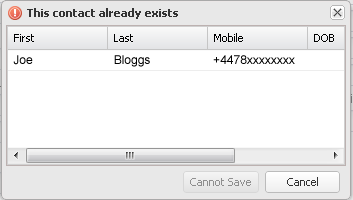
**Check 2**
If one or more clients with the same name are found to have any of the other fields matching then diarybook will warn the user of possible duplication. The user is presented with a window with information on the existing clients and can decide to continue with the client addition or to cancel.

---
Source: https://diarybook.com/docs/v8/managing-clients/