SMS reminders
Text reminders go automatically to the client’s mobile. Of the four channels this is the one you have most control over: the message is yours to write, and you decide whether the client can text back.
Why this matters
SMS is read. It arrives on a device the client already has in their hand, needs no app, no login and no data connection, and it is the only channel where a client can respond without ringing anyone. For most services it does more to reduce Did Not Attend (DNA) rates than everything else combined.
It is also the only channel with a per-message cost, which is why the length of what you write matters.
Before you start
The client record needs a mobile number. Decide before you configure anything whether clients should be able to reply, because it determines the sender ID and cannot be quietly changed later without changing what clients see.
Choosing whether clients can reply
The sender ID a message is sent from determines whether it can be replied to. A sender ID is either a mobile/text number or a word of up to 11 characters.
| Option | Can the client reply? | Description |
|---|---|---|
| Alphanumeric Sender ID | No | A word of up to 11 characters, usually the name of the organisation. The client’s handset has no number to reply to |
| Replies to Diarybook | Yes | The sender ID is one of Diarybook’s numbers. Replies are received by Diarybook |
There are two options. There is no third.
Make this choice deliberately, because enabling replies has a limitation worth understanding. A reply carries no appointment context — Diarybook receives the text but not an indication of which appointment it answers. A client who receives reminders for two appointments on the same day and texts back once cannot be matched reliably to the appointment they meant.
Where clients routinely hold more than one appointment on a day, an alphanumeric sender ID with confirmation collected another way is often the safer arrangement.
Which of the client’s numbers to use
You choose whether reminders go to the client’s main mobile only, or also to the two extra/guardian numbers on the record. Sending to the extra numbers is how a parent or carer is kept informed alongside the client.
In a synced environment this choice has a consequence beyond messaging: it affects how incoming data is read, because one client appearing with several numbers has to be told apart from one client whose number has changed. See Appointments in a synced environment.
Writing the message
The message text is entirely yours. Put the organisation’s name or the practitioner’s name in it, and use merge fields to insert the client’s name and the appointment date and time when the message is sent. A basic reminder uses only the appointment date and time.
Where replies are enabled, the convention is to close by asking the client to reply to confirm.
Keep an eye on length. Longer messages are split into multiple parts and cost more to send — SMS message parts explains how the counting works and which characters cost more than they look.
Delivery
Messages are sent through the mobile operator’s network, so delivery time cannot be guaranteed. Clients usually receive a message seconds after it is sent, but delays and network problems do happen.
The operator reports back to Diarybook whether a message was delivered. You can review every message sent and see its delivery status — the codes are listed in SMS status codes.
Steps
- Go to the Settings area and select Reminder Settings.
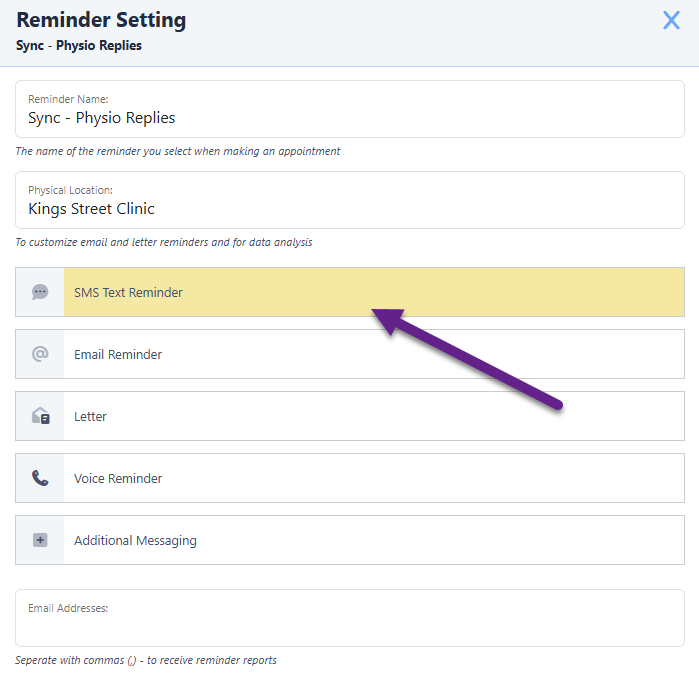
- Open the Reminder Setting used by the appointments you want to cover.
- Click SMS Text Reminders to open the SMS window, and activate the channel.
- Write the message, inserting merge fields where appointment and client details belong.
- Set the sender ID according to whether clients should be able to reply.
- Choose whether the extra/guardian numbers are used as well as the main mobile.
- Add a schedule item and set the trigger — days before, hours before, or the day the appointment was created.
- Set Earliest Time so texts do not arrive before your working day starts.
- Restrict the item to particular appointment days if you are avoiding weekend sends, and select Is Flexible if short-notice bookings should still get a text.
An SMS schedule can hold several schedule items, which is how an account sends a reminder a week out and again the day before. Triggers, Earliest Time, day-of-week restriction and Is Flexible all behave as described in How reminders work.
What to watch for
Texts arrive at the weekend
The schedule counts calendar days, not working days. Split the schedule into items restricted to particular appointment days and give early-week appointments more notice — How reminders work works the pattern through with a full example.
A client replies to confirm and the wrong appointment is updated
A reply carries no appointment context. Where clients often have more than one appointment on a day, use an alphanumeric sender ID and confirm by another route.
Messages cost more than expected
A message longer than a single part is charged as multiple messages, and some characters consume more of the allowance than they appear to. Check the wording against SMS message parts before rolling a new template out across an account.
A message shows as sent but the client says it never arrived
Sent and delivered are different things. Check the delivery status on the message itself — the operator reports back, and SMS status codes explains what each result means.
A confirmed appointment stops receiving texts
That is the default across all channels. Select Include Confirmed Appointments on the schedule item if later reminders should go out regardless.