Letter reminders
Diarybook builds an appointment letter as a PDF from a Word template you supply, and emails it to one of your own users. It does not post the letter.
To send a one-off batch of letters to chosen clients rather than per appointment, see Sending letters.
Why this matters
Letters reach the clients no digital channel does — people with no mobile, no email, or no reliable access to either. In services where that group overlaps heavily with the clients most likely to miss an appointment, a letter is not a legacy channel but the one that works.
A letter is also a record. Where a service has to be able to show what a client was told and when, a generated PDF held against the appointment is evidence in a way a text message is not.
Before you start
You need a Word template containing the letter’s fixed wording with merge fields embedded in the text where the appointment, client and location details belong.
You need a destination email address — the address the generated PDFs are sent to. This is a field in the Letter window, and it is separate from the Email Report address on the Reminder Setting itself, which sends a daily summary rather than the letters.
You also need somebody whose job it is to print and post what arrives. Diarybook’s part ends when the email is sent.
What Diarybook generates
The Word template is merged with the appointment’s details and converted to PDF.
The PDF is emailed to the address on the Letter window — a Diarybook user, not the client. Nothing is posted, and nothing reaches the client directly on this channel.
This catches people out often enough to be worth stating plainly: turning on letter reminders does not send anything to your clients. It produces the letters and delivers them to you, ready to print.
Steps
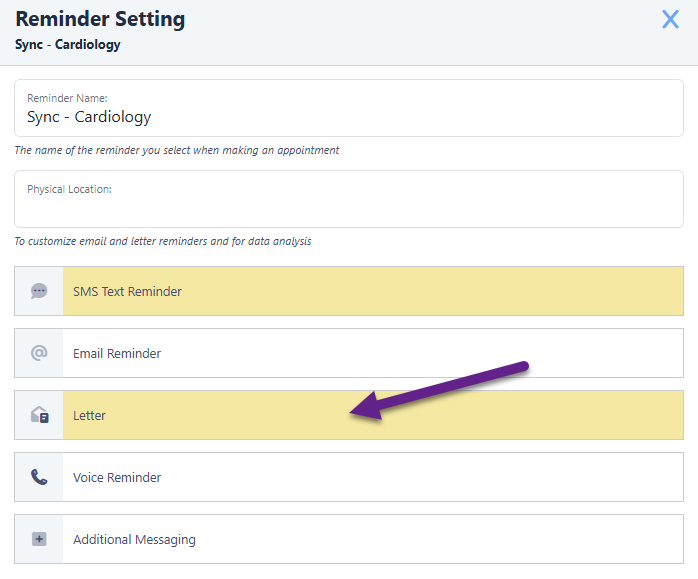
- Go to the Settings area and select Reminder Settings.
- Open the Reminder Setting used by the appointments you want to cover.
- Click Letter to open the letter window, and activate the channel.
- Upload the Word template. Uploaded templates are kept on the Files screen in the Messaging area.
- Set the email address the generated PDFs should be sent to.
- Add a schedule item and set the trigger. Generating on the day the appointment was created is common, since it gives the longest possible time for the post to arrive.
- Set Earliest Time, restrict the item to particular appointment days if you need to, and select Is Flexible if short-notice bookings should still produce a letter.
A Letter schedule can hold several schedule items. Triggers, Earliest Time and Is Flexible all behave as described in How reminders work.
Letter By SMS
Letter By SMS generates the same letter but does not email it. The PDF is saved against the appointment record, where DiaryPage can present it to the client when they view their appointment online. The client gets a text with a link rather than an envelope.
It is configured under Additional Messaging and needs three things:
- A DiaryPage subscription.
- An approved alphanumeric sender ID.
- The text of the SMS notification, which must include the DiaryPage merge field that produces the link. That merge field is specific to your account and is supplied by your account manager.
Additional Messaging Letter and Letter By SMS each take one schedule item only, unlike the main Letter schedule.
What to watch for
The letters generate but clients never receive them
Diarybook emails the PDFs to a user and stops there. If nobody owns printing and posting, letters accumulate in an inbox. Check the destination address is one somebody actually reads.
Parts of the letter come out blank
A merge field that has no value produces nothing rather than an error. A client with no address, or an appointment with no location, leaves a gap in the printed letter. Proof a generated PDF against a real appointment before going live, not against a test record with every field filled.
Letters arrive too late to be useful
Post takes days that a text message does not. Trigger the letter on the day the appointment was created rather than counting back from the appointment date, and make sure short-notice bookings are covered by another channel instead.
Only one Additional Messaging letter item can be set
The main Letter schedule takes several schedule items, but Additional Messaging Letter and Letter By SMS take one each. If you need letters at two different points, one of them has to come from the main schedule.
A template can’t be deleted from Files
A Word template used by a reminder setting is marked In Use on the Files screen and can’t be deleted. Remove it from the reminder setting first.