Email reminders
Email reminders go automatically to the email address held on the client record. Unlike SMS, the content is a fixed template — what you control is the schedule and the location details that fill it.
Why this matters
Email costs nothing per message and carries far more detail than a text: a full address block, contact numbers, directions and a calendar button the client can tap. For services where clients travel to an unfamiliar site, an email alongside the text reminder answers the questions that otherwise arrive as phone calls.
Before you start
The client record needs an email address. There is only one email field per client, so a client with no address on file receives nothing on this channel — check your import or data entry covers it.
The appointment’s location record needs to be complete. The address, contact and directions in the email are pulled straight from it, and gaps appear as gaps in the client’s inbox. See Locations.
What the client receives
The template opens with the client’s first name, gives the day, date and time of the appointment, and offers an Add To Calendar button.
Beneath that it sets out where the appointment is:
| Label | Filled from |
|---|---|
| Location | ^^loc_name^^ |
| Address | ^^loc_address1^^ through ^^loc_address5^^ |
| Contact | ^^loc_contact^^ |
| ^^loc_email^^ | |
| Phone | ^^loc_phone^^ |
| Further Details | ^^loc_directions^^ and ^^loc_map^^ |
It closes by telling the client that the email cannot be replied to, and to contact their service provider with any questions.
The wording is fixed and cannot be edited, and no branding is applied — there is no logo or organisation styling on the email. If you need to say something specific to a client or an appointment type, that belongs in an SMS reminder or an Additional Messaging item, where the text is yours to write.
Bounces
A bounced email is ignored. Nothing is logged for you to review, and the address is not flagged on the client record.
This makes email a channel that fails quietly. An address that was mistyped at registration, or that belonged to an employer the client has since left, goes on being sent to indefinitely and nobody finds out. Treat email as cover alongside another channel rather than the only way you reach someone.
Steps
- Go to the Settings area and select Reminder Settings.
- Open the Reminder Setting used by the appointments you want to cover.
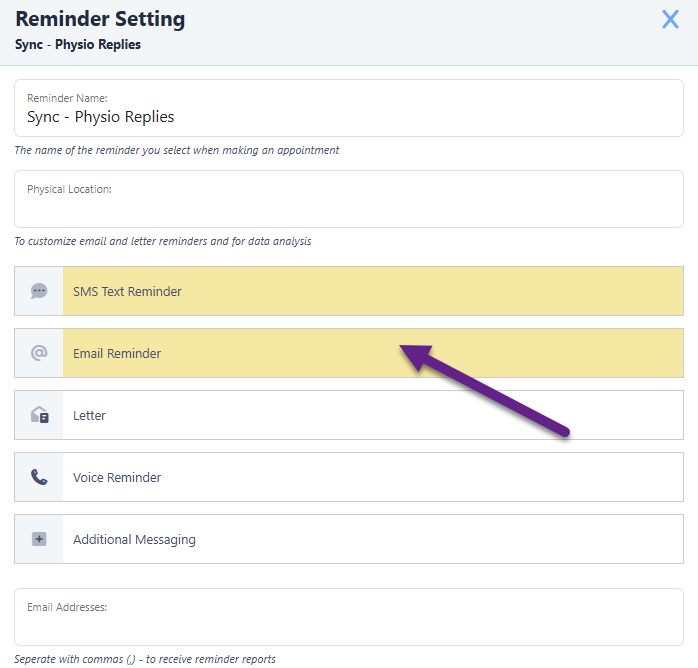
- Click Email Reminder to open the email window, and activate the channel.
- Add a schedule item and set the trigger — days before, hours before, or the day the appointment was created.
- Set Earliest Time so email does not go out before your working day starts.
- Restrict the item to particular appointment days if you are avoiding weekend sends, and select Is Flexible if short-notice bookings should still get an email.
An Email schedule can hold several items, so a week-before and a day-before email is a matter of adding two. The full behaviour of triggers, Earliest Time and Is Flexible is described in How reminders work.
What to watch for
Some clients get no email
There is one email field on the client record and no fallback. Clients without an address on file are silently skipped — they are not an error, they simply do not appear in the send. Where email is your main channel, check for blank addresses as part of routine data quality.
A client insists they never received the reminder
Nothing distinguishes an email that arrived from one that bounced, because bounces are discarded. Confirm the address on the client record is current, and use SMS or voice for clients who must be reached.
The address block in the email looks half empty
The address, contact and directions come from the appointment’s location record, not from the Reminder Setting. Fill in the location and every future email picks it up.
A client tries to reply and hears nothing back
Email reminders cannot be replied to, and the template says so. If you need a route back from the client, enable replies on SMS instead — see How reminders work.
A confirmed appointment stops receiving emails
That is the default across all channels. Select Include Confirmed Appointments on the schedule item if the client should receive the later reminders regardless.