Additional Messaging
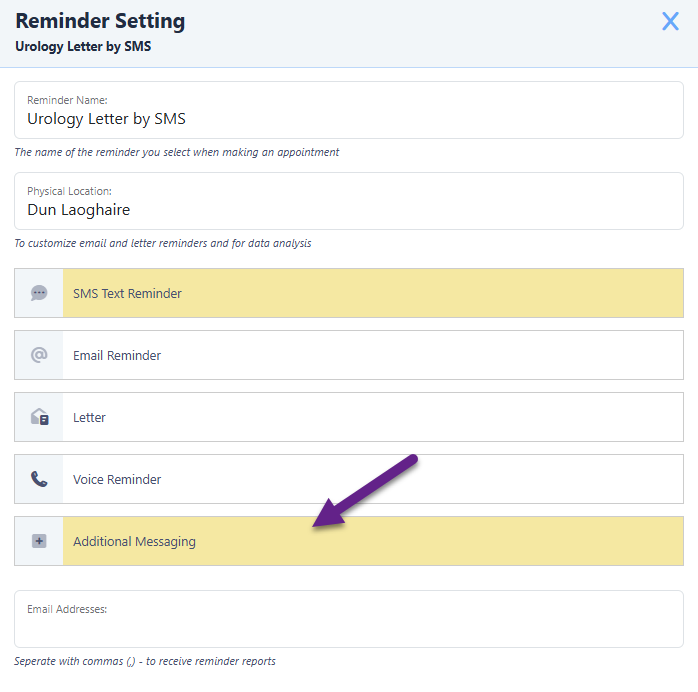
Additional Messaging is a section within a Reminder Setting, opened with the Additional Messaging button. It does two things the four main channels cannot: it can message a client after the appointment, and it can target appointments by status.
Why this matters
A reminder tells a client an appointment is coming. Additional Messaging is what lets a service act on what happened — chase the clients who have not responded, write to the ones who did not attend, or ask everyone who did how it went. That is the difference between a system that reduces Did Not Attend (DNA) rates and one that also tells you why they happen.
Before you start
Additional Messaging sits inside a Reminder Setting, so the setting has to exist first and the appointments you want to reach must be linked to it. See How reminders work.
What it adds
Three message types are available, and each behaves as it does on the main channel:
| Type | Notes |
|---|---|
| SMS | The message text is yours to write, with merge fields. Sender ID, reply handling and number selection are inherited from the parent Reminder Setting — see SMS reminders |
| Letter | A PDF generated from a Word template and emailed to a user — see Letter reminders |
| Letter By SMS | The same letter saved to the appointment record for DiaryPage, with a text notification linking to it |
There is no email or voice option in Additional Messaging.
Each type takes one schedule item only. This is the main structural difference from the main channels, where an SMS or Letter schedule can hold several items. If you need messages at two different points, one of them has to come from the main schedule.
Triggers
Additional Messaging offers every trigger the main schedules do, plus two that fire on or after the appointment:
| Trigger | Also on main schedules | When it fires |
|---|---|---|
| Days before the appointment | The set number of days ahead | |
| Hours before the appointment | The set number of hours ahead | |
| The day the appointment was created | On booking | |
| The day of the appointment | — | On the day, once the appointment’s end time has passed |
| Days after the appointment | — | The set number of days afterwards |
Both of the after-the-fact triggers wait for the appointment’s end time. Nothing is sent while an appointment is still in progress.
Earliest Time and the day-of-week restriction work exactly as they do elsewhere, and are described in How reminders work.
Filtering by status
This is what Additional Messaging is for. A schedule item can be restricted so it only reaches appointments in particular states, and which kind of status depends on when the item fires.
Before the appointment: confirmation status
A before-appointment item can target any combination of these:
| Status | Meaning |
|---|---|
| No Status | The client has not responded |
| Confirmed | The client confirmed they will attend |
| Unable To Attend (UTA) | The client said they cannot attend |
| Cancelled By Client | The client cancelled the appointment |
| Cancelled By User | Your organisation cancelled the appointment |
| Tentative | The client gave a qualified answer |
This is the only place a cancelled appointment can be reached by a message. Main reminder schedules never send to one.
If a selection includes Confirmed alongside either cancelled status, Diarybook shows a warning:
Warning: your selection contains both appointments marked confirmed and appointments marked cancelled. If your message is an appointment reminder please amend
The warning does not block anything. The combination is legitimate for a message that is not a reminder — a notice about a change of premises, say — but in a reminder it is almost always a mistake.
Include Confirmed Appointments
A tick box that tells Diarybook to include appointments the client has already confirmed. By default confirmed appointments are skipped so clients are not chased needlessly. Use it where an appointment has several reminders and the client should receive all of them.
On or after the appointment day: attendance status
An item triggered on or after the appointment day can be restricted by attendance status instead:
| Filter option | Reaches |
|---|---|
| Any Attendance Status | Every appointment, whatever its status |
| Completed | Appointments the client attended and finished |
| Contacted | Remote appointments where the client was successfully reached |
| Did Not Attend | Appointments the client did not turn up for |
| Contact Failed | Remote appointments where contact was attempted and failed |
These are the filter options as they appear in Additional Messaging. The underlying attendance statuses, and how they are set on an appointment, are covered in Attendance and DNA.
Steps
- Go to the Settings area and select Reminder Settings.
- Open the Reminder Setting used by the appointments you want to cover.
- Click Additional Messaging.
- Choose the message type — SMS, Letter or Letter By SMS — and write the message or upload the template.
- Add the schedule item and set the trigger.
- Set Earliest Time, and restrict to particular appointment days if you need to.
- Set the status filter — confirmation statuses for a before-appointment item, attendance statuses for one on or after the day.
Worked examples
Chasing non-responders. An SMS item triggered two days before, targeting No Status only, texts the clients who have not answered the first reminder and leaves alone the ones who have.
Following up a DNA. A Letter item triggered one day after the appointment, filtered to Did Not Attend, generates a letter for every client who did not turn up, ready to print.
A post-appointment survey. An SMS item triggered a day after, filtered to Completed, asks the clients who actually attended how it went.
What to watch for
A follow-up message never arrives
Both after-the-fact triggers wait for the appointment’s end time. An appointment that has not reached its end time yet produces nothing, however the day is counted.
You need two follow-up letters and can only set one
Additional Messaging Letter takes a single schedule item. A second letter at a different point has to come from the main Letter schedule, which does accept several.
A reminder reaches a client who cancelled
Check the confirmation status filter on the item. Cancelled appointments are unreachable everywhere else, so if a cancelled client got a reminder, it came from an Additional Messaging item that includes a cancelled status.
The warning about confirmed and cancelled appears and is ignored
It does not block the save, so it is easy to click past. If the message is a reminder, amend the selection — you are about to remind someone of an appointment that is not happening.