Attendance Status
The attendance status of a client in an appointment acts as both a real-time look at where the client is as well as a historical record of their attendance record. Management of attendance status can help with the smooth delivery of appointments and of client management.
Types of Attendance Status
There are 2 types of attendance status: in person (or face to face) and remote. The former is used when a client physically arrives at a location to attend their appointment. The latter is used for phone consultations. Every appointment created in Diarybook starts with an attendance status of none.
Possible statuses are
- None
- Waiting
- Active / With User
- Finished
- Did Not Attend (DNA)
- Was Contacted
- Contact Failed
| Status | Type | Meaning |
|---|---|---|
| None | ||
| Is Waiting | In person | Client has arrived at the location and is waiting |
| Is Active | In person | Client is with the clinician / Appointment is active |
| Finished | In person | The client has completed their appointment |
| DNA | In person | Did Not Attend - client did not show up for appointment |
| Was Contacted | Remote | The client was successfully contacted for their phone consultation |
| Contact Failed | Remote | Contact with the client was attempted and failed |
Changing the attendance status of an appointment
In Diarybook there are various ways of changing the attendance status of a client for their appointment.
Appointments List
When changing the status from the appointments list you first select (tick) each appointment to be changed. Note that all clients associated with an appointment is updated. This means, for Group Appointments where there are multiple clients in one appointment, all clients attendance status for that appointment are changed.
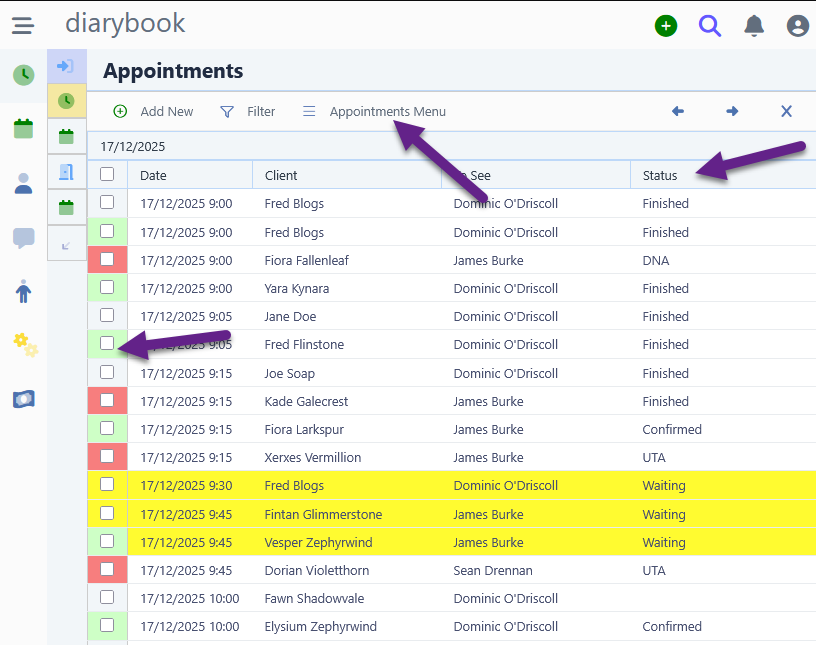
| Method | Description |
|---|---|
| Appointments Menu | Select from menu of attendance statuses |
| Keyboard : press Shift-N | Change status to next logical status in sequence - see below |
| Keyboard : press Shift-\ | Change status to Is Waiting |
| Keyboard : press Shift-A | Change status to Is Active |
| Keyboard : press Shift-F | Change status to Finished |
| Keyboard : press Shift-X | Change status to DNA |
Shift-N Sequence
| Current Status | New Status |
|---|---|
| None | Is Waiting |
| Is Waiting | Is Active |
| Is Active | Finished |
| other | ignored |
Appointment View
When changing the status from the Appointment View you are only affecting one appointment.
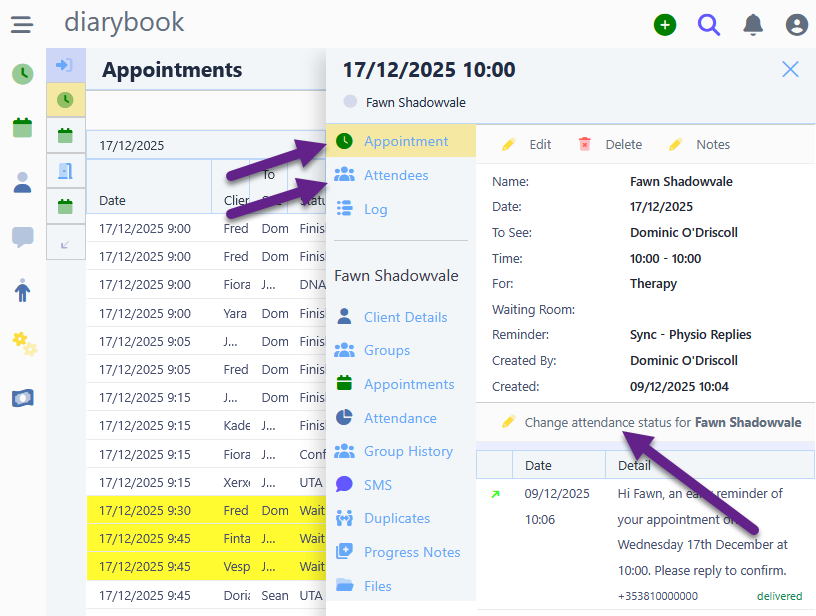
| Method | Description |
|---|---|
| General View | If the appointment is today the general view will contain an option for Change attendance status for. Select from menu of attendance statuses |
| Attendees View | Select (tick) each attendee to be changed and click the Attendace menu. Select from menu of attendance statuses |
With accounts using Self-Check-In screens, the client can alter their own status to Waiting using a public terminal.
Viewing Statuses
The appointments list has a status column that shows the status of the appointment. Note, that if the appointment has a Confirmation Status and no Attendance Status then the column shows the Confirmation Status.
If you are the clinician, or service provider, that the client is waiting to see you can receive a pop-up notification on the screen as shown below.
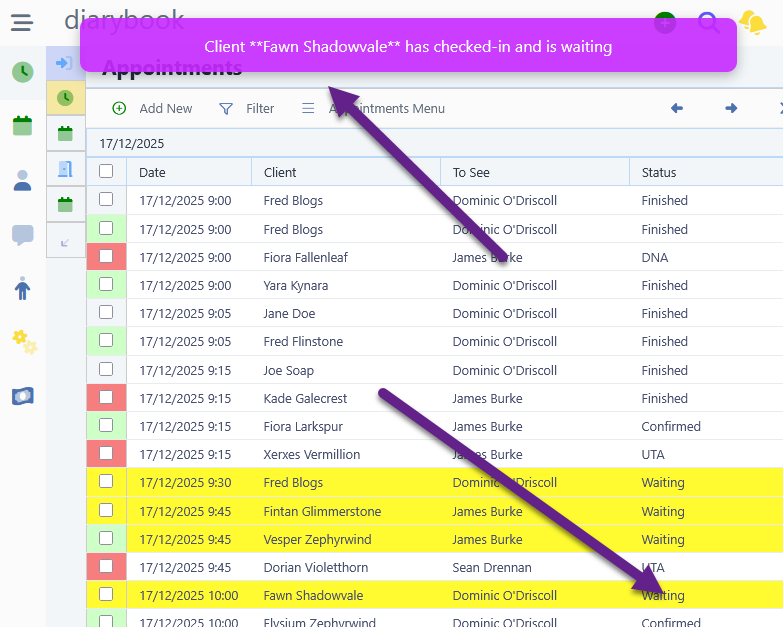
In addition the notification icon in the toolbar changes colour to show that you’ve recently received a notification. Click on the icon to read all recent notifications.